A PRACTICAL GUIDE FOR SHOPIFY MERCHANTS
How to clean up a supplier product catalog in Shopify
Supplier data can get products into your store quickly. Turning that data into clear, consistent product pages takes another step: checking the source, preparing images and text, and reviewing what customers will see.
By Rezivelo Product Studio · Published
1. Find the gaps in one supplier group
Begin with one vendor or product type. Open a few representative items: a product with a good source description, one with only a model code, and one with inconsistent photos. This shows whether the main problem is presentation, missing information, or both.
- Do product titles identify the brand, product type and model?
- Are colors and variants matched to the right photos?
- Do descriptions contain verified materials, dimensions and relevant features?
- Are SEO titles and meta descriptions useful for each product?
- Do tags follow the same naming convention across the catalog?
Keep stock, prices and supplier synchronization separate from this content workflow. A polished description does not correct an unavailable size or an outdated price.
2. Keep verified facts before rewriting
A supplier description may be short and still contain valuable facts. Preserve the brand, model number, composition and dimensions before changing the wording. Use the supplier’s source information to resolve conflicts rather than asking AI to choose a plausible answer.
For a jacket, a photo can help explain visible details, but it cannot establish warmth ratings or fabric composition. For a bag, confirm dimensions and compartments from reliable product information. Add missing facts to the source before generating a richer description.
Keep variant names and model references consistent. If two color variants share similar images, review each against the actual product rather than copying one result across the range.
3. Prepare a consistent photo presentation
Choose a consistent background and framing for a category. Select the existing source images that clearly show the correct item. Start with one image, compare the prepared result, and check the color, stitching, logos, labels and product shape.
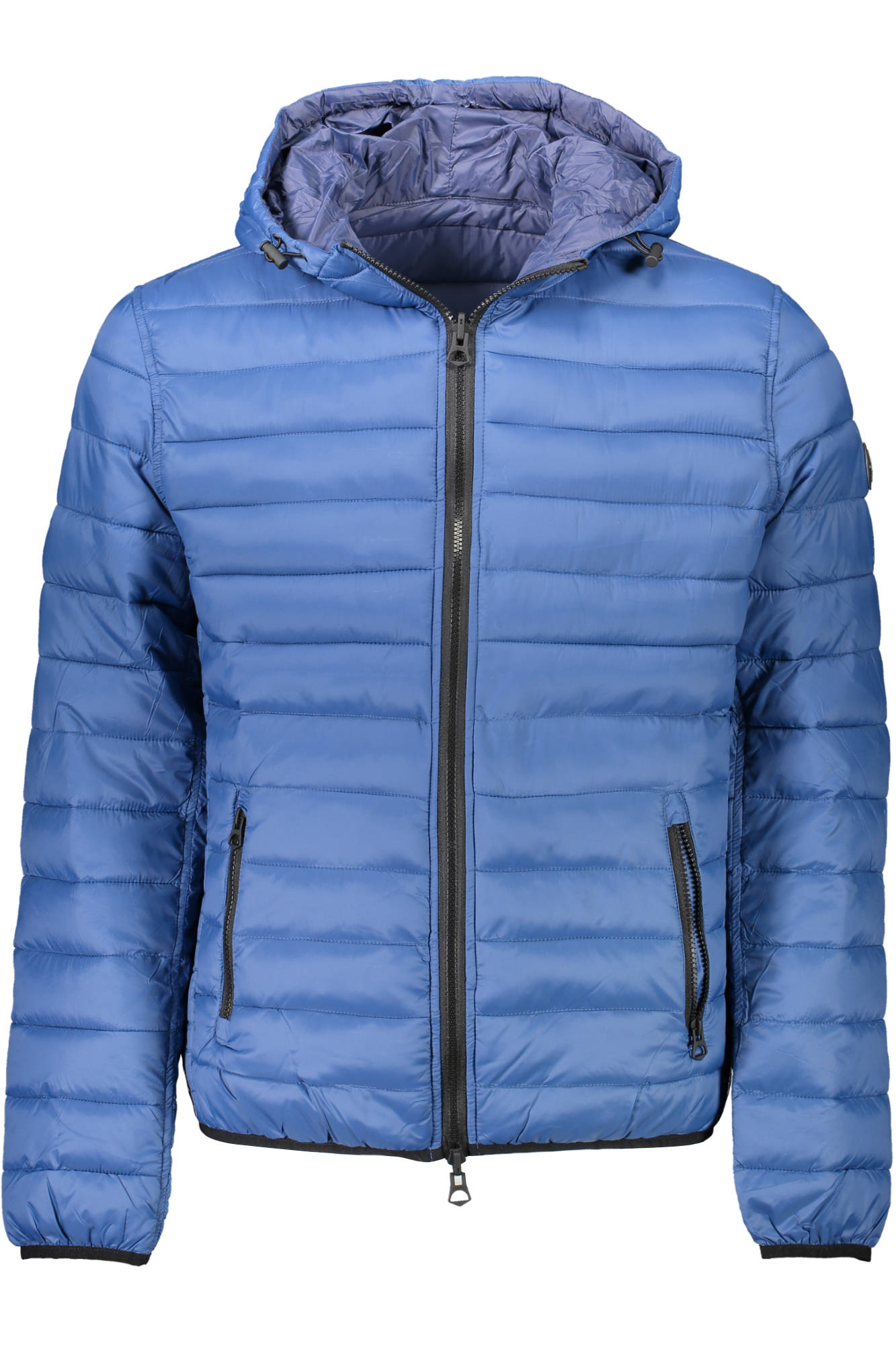
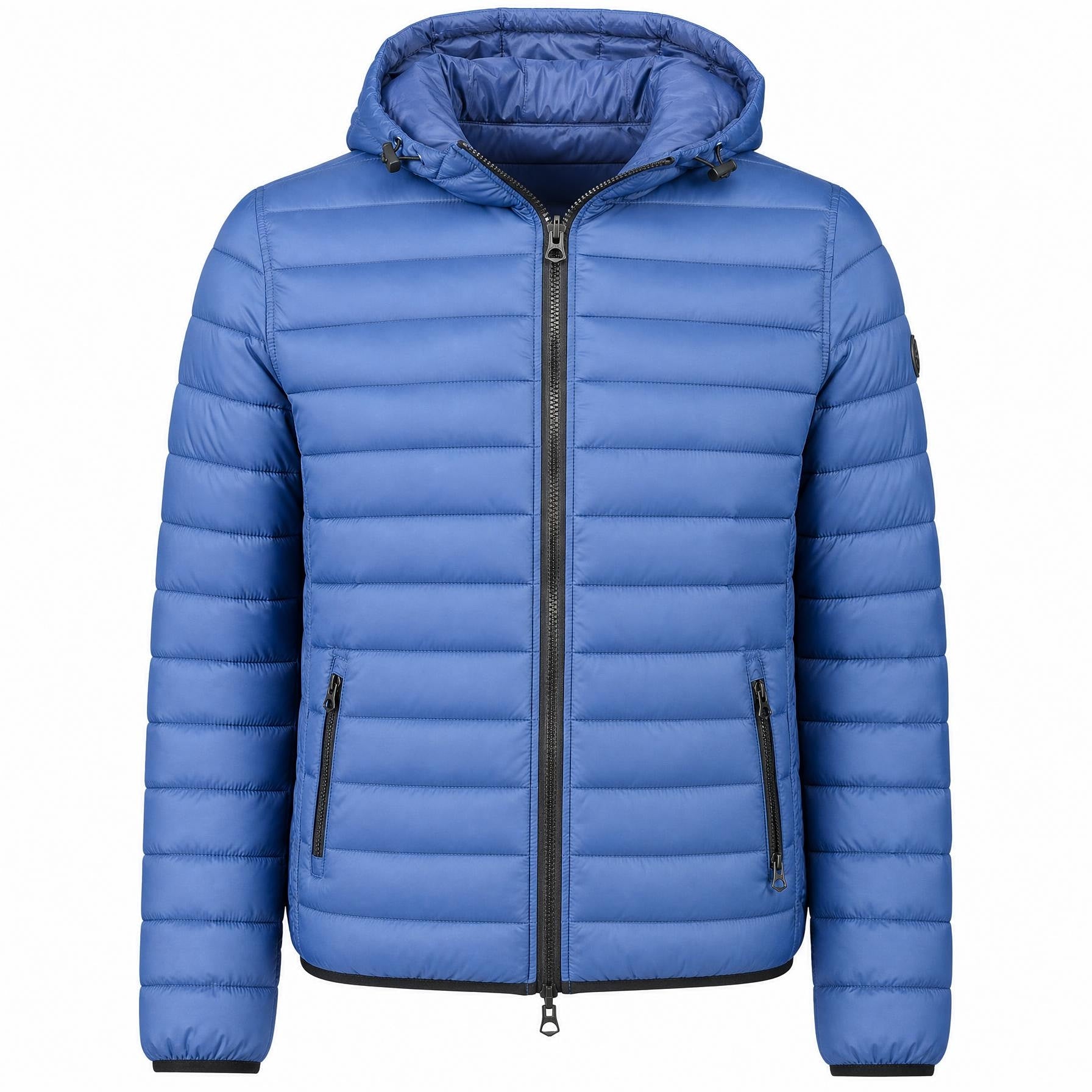
Actual jacket image comparison from the 8 October 2026 app demonstration. The source belongs to that demonstration; this is not an audit of a supplier’s entire catalog.
Use the photo background checklist to review the result. If the prepared image changes a product detail, keep the original or choose a better source. Consistency is useful only when the item remains accurately represented.
4. Turn the facts into a useful product page
Organize the description around information a buyer needs: what the product is, visible features, verified materials, sizing or dimensions, and care details when available. Choose the output language and optional sections that fit your store.
Rezivelo prepares a description, SEO title, meta description and tags as one product content package. Review all four together. Keep the real brand and model in the appropriate fields, remove unsupported claims, and make the wording specific to the item.
Tags should fit your catalog organization. Check their effect on automated collections before publishing. They are not a substitute for a clear product page or a guarantee of search visibility.
See the actual jacket’s short source description, reviewed result, SEO and tags →
5. Review one result, then prepare a batch
Check the first item against the original information. Preview the image and description on your storefront, including on a phone. Keep existing fields that are already good and publish only the changes you approve.
Once the approach fits your category, select a manageable group. One image plus one content package uses 2 credits per product: 25 such products use 50 credits. This is a planning example. Review the selected work and the app’s credit estimate before starting.
Use the bulk preparation guide for the selection, queue and review process. Keep originals and check restored products if you reverse a published change.
See the complete before-and-after example
Compare one jacket’s source image and description with its prepared image and reviewed content. The free trial includes one product image and one description, SEO and tags package. Public installation is pending Shopify App Store review.