A PRACTICAL GUIDE FOR SHOPIFY MERCHANTS
How to prepare Shopify products in bulk with AI
Work through a selected group of products with one repeatable process: choose the tasks, check the credit estimate, review the results and publish approved fields.
By Rezivelo Product Studio · Published
1. Select products that belong in the same workflow
Begin with one supplier, product type or collection. A group of jackets with short supplier descriptions is easier to review consistently than a mixed selection of jackets, watches and bags.
In Rezivelo Product Studio, filter by search words, vendor, product type, tags or product status. Check the actual product list before selecting the batch. The queue supports up to 100 products; that is a limit, not a recommendation to begin with the largest possible group.
- Confirm the correct products and color variants.
- Choose the source images you want prepared.
- Check that existing titles, model numbers, materials and dimensions are accurate.
- Choose images, a content package, or both.
- Set a content language and the description sections your customers need.
If supplier facts are incomplete, collect them before generation. AI should not fill gaps with invented composition, measurements or performance claims.
2. Estimate the credits for 25 products
An image uses 1 credit. One product content package uses 1 credit and includes the description, SEO title, meta description and tags. The fields in that package do not each consume a separate credit.
| Selected work | Calculation | Total |
|---|---|---|
| Content only | 25 × 1 content package | 25 credits |
| One image + content per product | 25 × (1 image + 1 package) | 50 credits |
| Three images + content per product | 25 × (3 images + 1 package) | 100 credits |
These are planning examples, not a recorded 25-product test. Actual cost depends on the images and tasks selected. Review the app’s estimate and product list before starting.
For a mixed batch, add the number of selected images to the number of selected content packages. For example, 10 products with one image and 15 with two images produce 40 images. Adding content for all 25 products makes the total 65 credits.
Technical failures release reserved credits. Completed work consumes credits even when you discard it or restore the original. Restoring is a way to reverse a published change, not a generation refund.
3. Start the batch and follow its progress
Preview the credit estimate, check the selected product list and explicitly approve processing. Work is queued on the server, so it can continue after you close the browser. Reopen the app to inspect progress and results in the activity history.
Generation prepares results for review. It does not mean that every image and description is ready to go live. If an item fails, inspect its status rather than starting the whole batch again and duplicating successful work.
4. Review each product against its source
Use the same checklist across the batch while keeping product-specific facts separate. Check image color, shape, stitching, labels and logos. For text, compare the brand, model, composition, dimensions and claims with your source information.
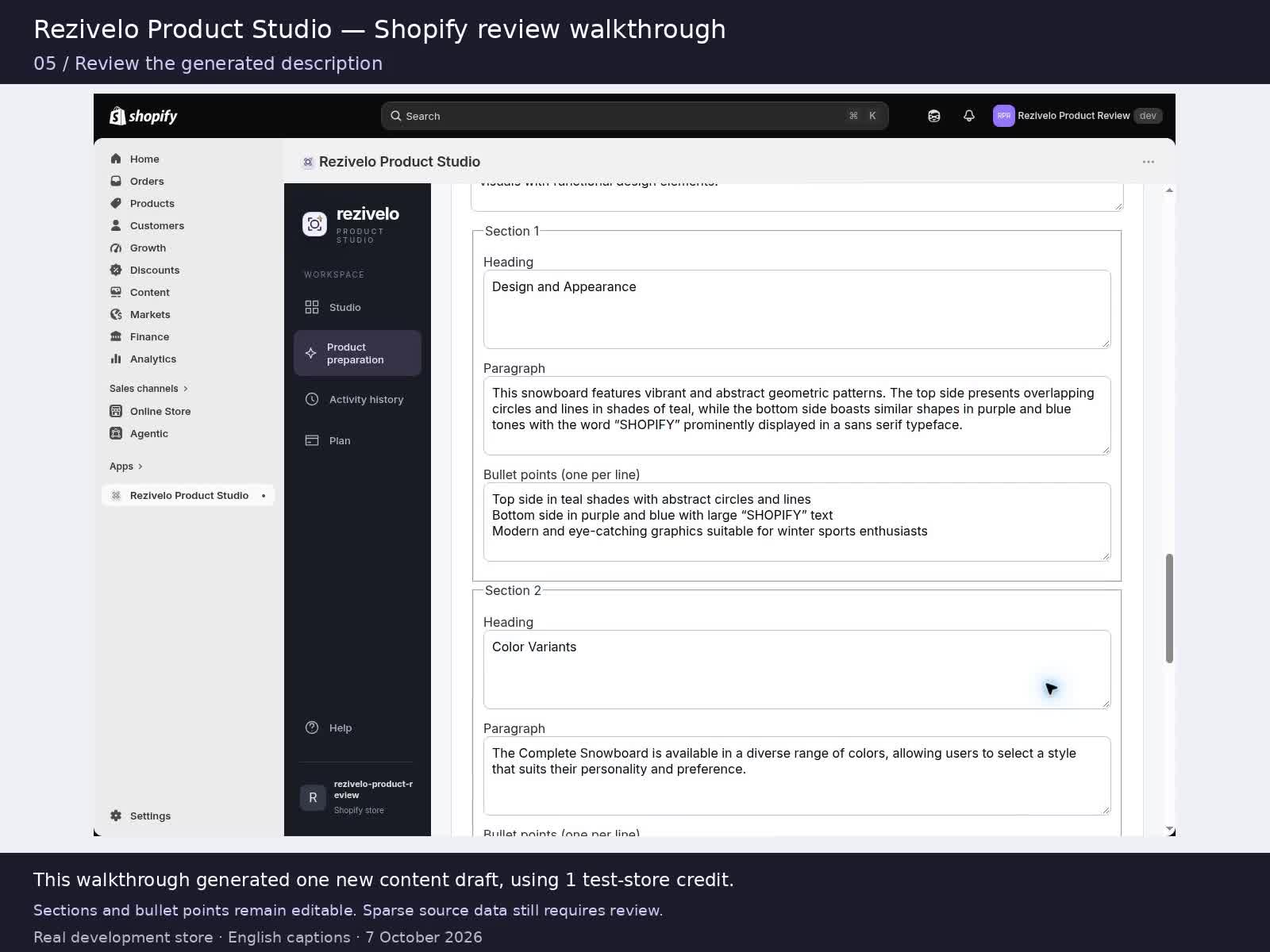
Read the source-coverage warnings and remove unsupported claims. Check the proposed SEO title and meta description for the correct product. Review tags against your existing catalog conventions.
5. Publish only the fields you have approved
Choose which product fields to publish. Keep a good existing title if you only want to update the description, SEO and tags. Review the selected changes and confirm approval before publishing.
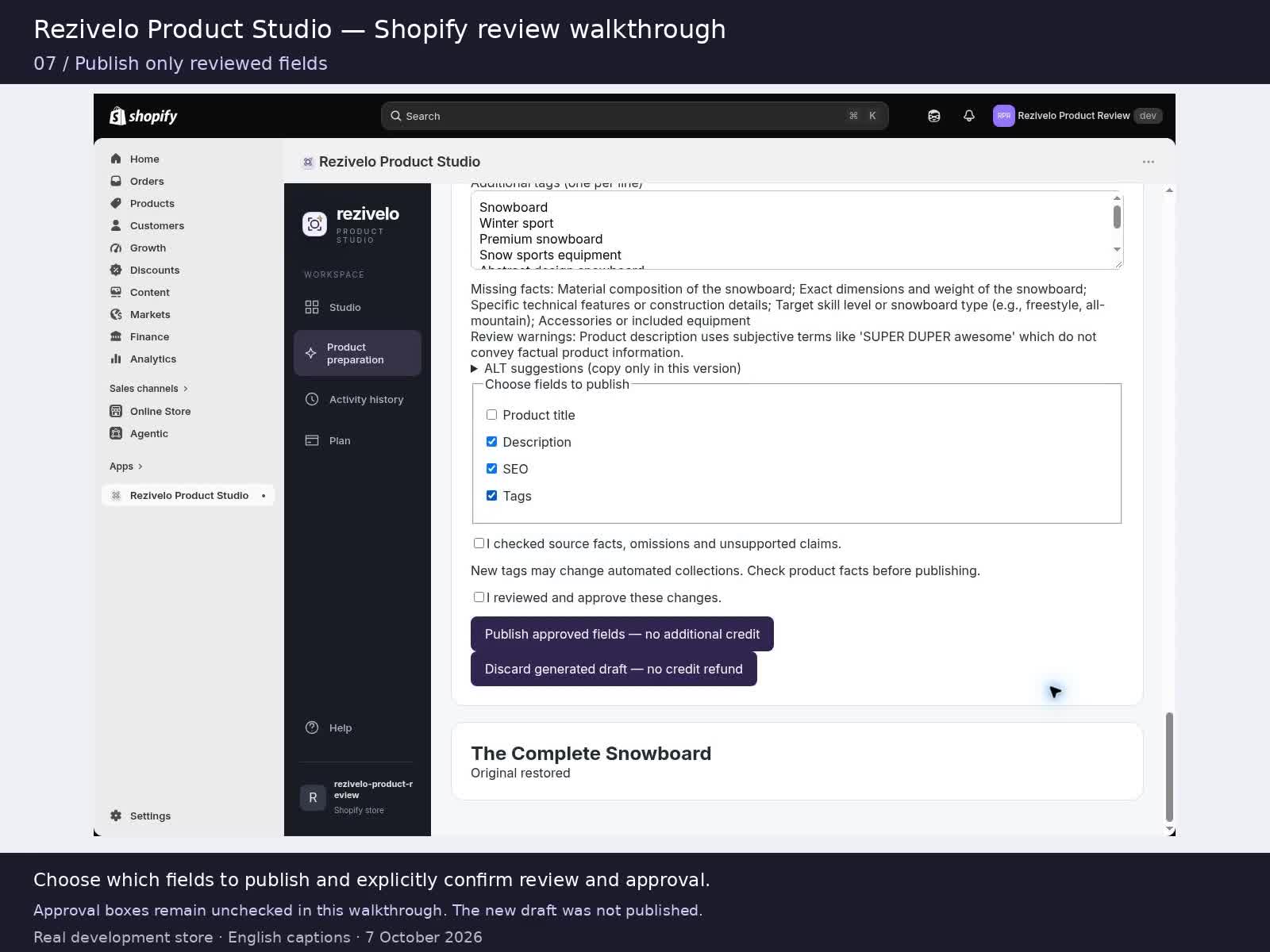
New tags can affect automated collections. After publishing, check the product page and its collection placement. Compare the main photo with the correct variant and preview the description on a phone.
Keep a route back to the original. Rezivelo retains backups for supported restoration. Review a restored product too, particularly when other catalog edits have happened since generation.
Try one product, then choose your batch
The free trial includes one product image and one description, SEO and tags package. Public installation is pending Shopify App Store review.