A PRACTICAL GUIDE FOR SHOPIFY MERCHANTS
How to make Shopify product photo backgrounds consistent
Supplier photos often use different backgrounds, crops and lighting. Prepare a repeatable catalog style while keeping the actual product recognizable and accurate.
By Rezivelo Product Studio · Published
1. Choose a background and framing rule
For a catalog with mixed supplier photography, a simple neutral background is a useful starting point. White, light gray and a restrained brand color are possible choices. Test your choice with both light and dark products so their edges remain visible.
- Background: choose one main style for catalog thumbnails.
- Framing: keep the whole item visible with a similar amount of empty space.
- Alignment: center comparable products consistently.
- Shadows: decide whether you want a subtle shadow and check that it looks plausible.
Keep useful lifestyle and detail photos as additional views. A consistent first image can coexist with close-ups that show stitching, material, fastenings and other details a customer needs.
2. Use a source photo that shows the complete product
Choose the clearest original you have. Avoid a photo with missing edges, severe blur or another object covering the item. A background edit cannot reliably recover details that were never visible.
Before processing, identify the correct product and color variant. Keep the original file and check which image is assigned to each variant. If a navy jacket and a black jacket share one listing, compare each result with its own source.
When taking new photos, use even lighting and a plain surface. Leave space around the product so you can crop without cutting off sleeves, straps or corners. These steps also help when you use a conventional image editor.
3. Compare a real jacket before and after
This example uses the same blue U.S. Polo Assn. hooded jacket source photo shown on our product overview. The prepared image comes from an actual Rezivelo app run on 8 October 2026. It illustrates one result, not a promise that every source photo will produce the same quality.
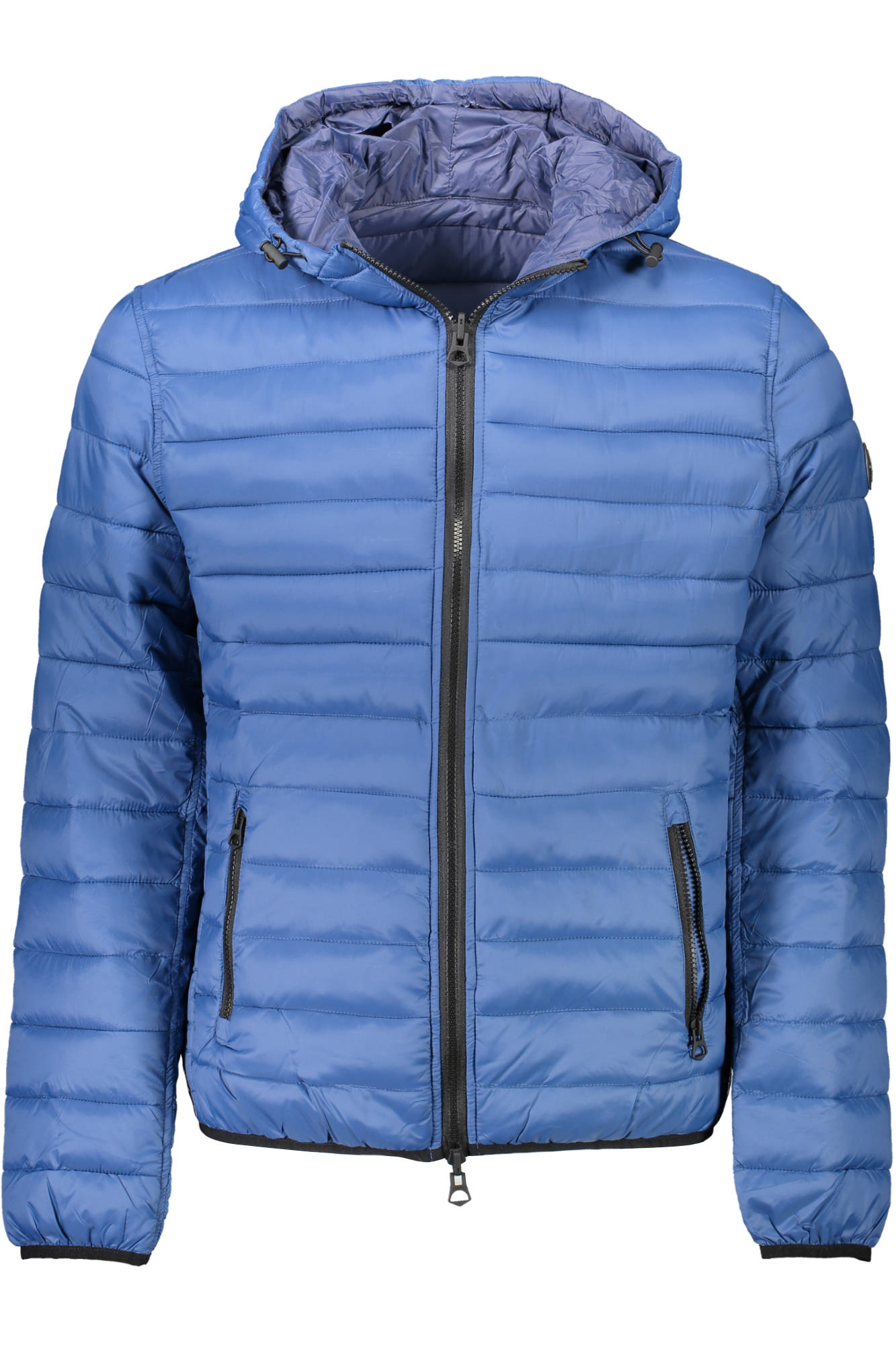
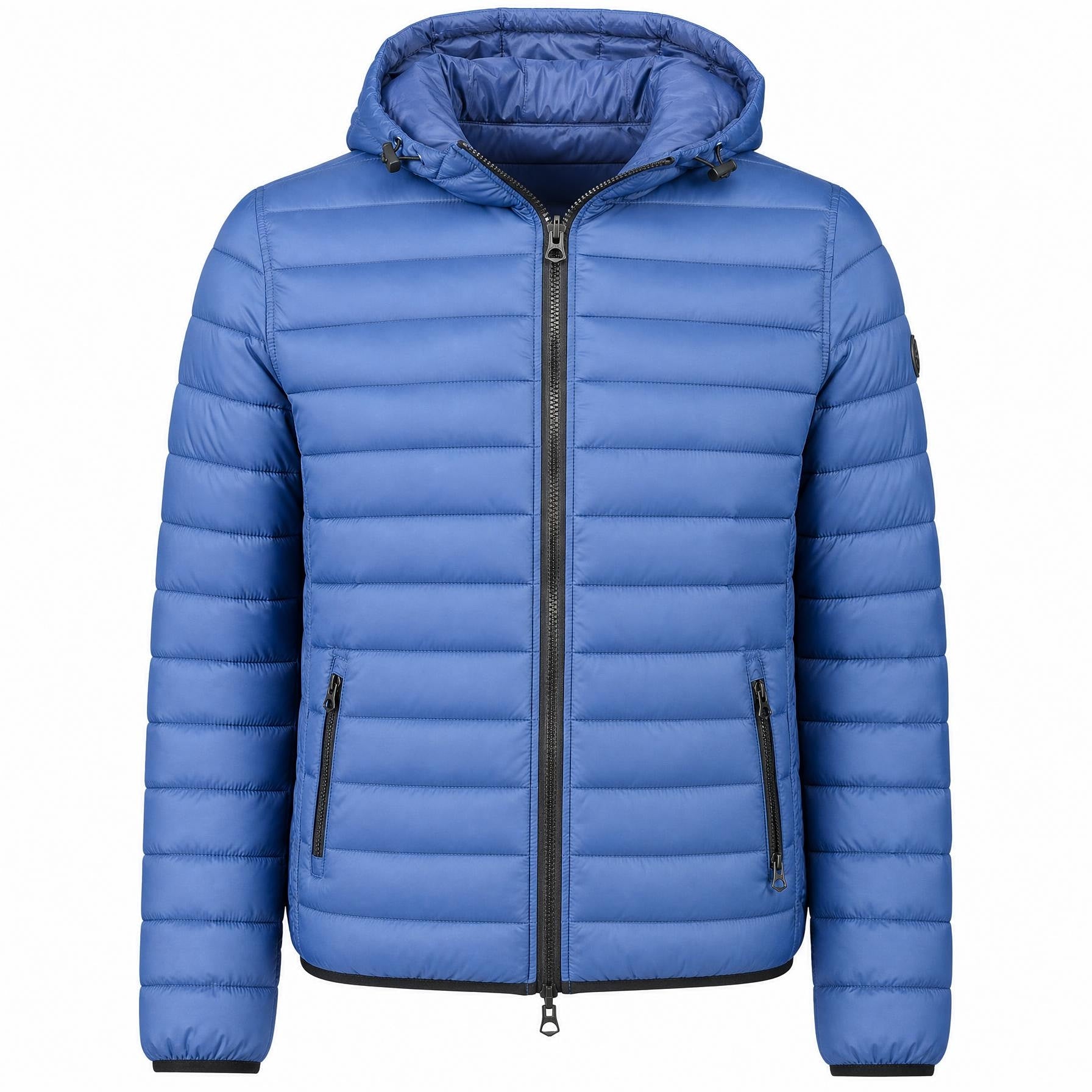
The original photo has wrinkles and an uneven silhouette. Compare the product outline, empty space and background in the prepared image, then open both images at full size to check the details.
AI can change product details, including color and fabric appearance. A cleaner background does not establish that the product is represented accurately. Check the hood, seams, zipper, label and logo against the original and the real item before publishing.
4. Check more than the background
Review the product first and the presentation second. Use this checklist for every prepared photo:
- Color: body, lining and hood match the correct variant.
- Shape: proportions, sleeves, straps and openings remain believable.
- Details: stitching, pockets, fastenings, labels and logos remain faithful.
- Edges: no missing parts, halos or leftover background fragments.
- Crop: the full item is visible and framing fits your catalog.
If you see a changed logo, incorrect color or missing detail, keep the original or prepare another version. Do not publish a result just because its background looks cleaner. Preview the selected image in your store on a phone as well as on a larger screen.
5. Prepare a selected group of products
Once a single-product example meets your standards, select a small group from one category or supplier. Compare light and dark items and products with complex edges before expanding the batch.
In Rezivelo Product Studio, select images already attached to your Shopify products, prepare the results, then review and approve before publishing. The app supports queues of up to 100 products and keeps original-image backups for restoration.
Generation and publishing are separate steps. Check every result and its product assignment; a successful first image does not guarantee that the remaining batch is ready.
Explore bulk product preparation →Try the workflow with one product
One prepared image uses 1 credit. A description, SEO and tags package uses 1 credit per product. The free trial includes one image and one content package for your selected product.
Public installation is pending Shopify App Store review. You can see the actual app workflow and example while publication is pending.
Prepare the text alongside the photos
A consistent product image needs an accurate product page. Keep materials, model numbers and dimensions grounded in your source when you prepare the description.
Read the Shopify AI product description guide →